
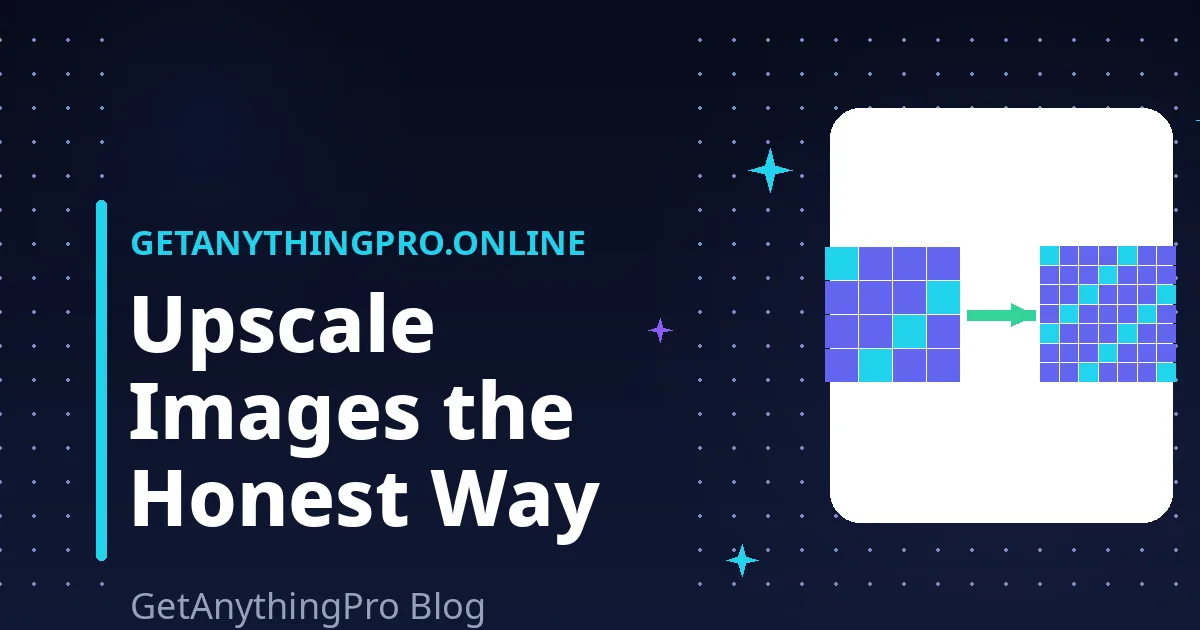
Every guide on how to upscale image without losing quality opens with a promise. Here is the honest opening instead: upscaling cannot recover detail that was never captured. A 500-pixel image enlarged to 2000 pixels will never contain the information a true 2000-pixel photo holds. What modern AI upscalers do — and it is genuinely impressive — is reconstruct plausible detail: educated guesses about what the missing pixels probably looked like. Understanding that distinction is the difference between great results and disappointment.
This guide explains how to upscale image without losing quality as far as physics allows: the three approaches that exist, when each one helps, the hard limits nobody advertises, and how to tell whether upscaling is even the right move. Our free Image Upscaler runs AI models entirely in your browser — your images are never uploaded, and you can upscale 2× or 4× with no signup.
Table of Contents
- The Physics: Why Upscaling Is Not Resizing
- How to Upscale Image Without Losing Quality: The 5 Methods
- When Upscaling Helps (and When It Won’t)
- What an AI Image Upscaler Can’t Do: Honest Limits
- The Print Math: How Big Can You Actually Go?
- The Right Workflow: Prepare Before You Upscale
- Try It: Upscale an Image
- Frequently Asked Questions
This physics section is the foundation of how to upscale image without losing quality.
The Physics: Why Upscaling Is Not Resizing
Downsizing throws away pixels you did not need. Upscaling must invent pixels you do not have. A traditional resize does the inventing with simple math — averaging neighboring pixels — which is why the result looks soft: every new pixel is a blend of its neighbors, so edges smear. This is covered in detail in our companion guide on how to resize an image without losing quality, which explains why shrinking is safe and growing is not.
AI upscaling takes a different approach. The model has been trained on millions of image pairs — low-resolution versions and their high-resolution originals — and has learned statistical patterns: what fur usually looks like, how text edges behave, how brick textures repeat. (The mathematics of traditional enlarging is covered in Wikipedia’s image scaling article.) Given your small image, it generates detail that is consistent with those patterns. The freckles it adds to an enlarged portrait look natural because the model knows what freckles look like — but they are the model’s freckles, not the person’s. For most purposes (a sharper-looking print, a cleaner web image) that distinction does not matter. But it matters enormously if the image is evidence, a medical scan, or anything where invented detail could mislead.
These five methods are the honest answer to how to upscale image without losing quality.
How to Upscale Image Without Losing Quality: The 5 Methods
There are five realistic ways to upscale, from instant to professional:
1. Browser AI upscaler (fastest, free)
Upload an image and get a 2× or 4× version in seconds, with no install and no account. Our Image Upscaler runs the AI model directly in your browser — the image never leaves your device — and handles both photos and graphics. This is the right first try for nearly everyone.
2. Photoshop Super Resolution / Preserve Details 2.0
Photoshop’s Enhance → Super Resolution doubles an image’s dimensions with Adobe’s trained model, and “Preserve Details 2.0” in the Image Size dialog is a strong traditional-plus-AI hybrid. Best if you already subscribe and want control over the result within a larger edit.
3. Dedicated desktop AI tools
Specialized upscaling software (Topaz Gigapixel is the best-known) offers multiple models tuned for different content — faces, architecture, low-quality sources — plus batch processing. The quality ceiling is the highest available, and so is the price.
4. Free open-source upscalers
Tools like Upscayl wrap open AI models in a free desktop app with no signup. Quality is genuinely competitive with paid options for 2×–4× enlargements. The trade-off is speed: without a strong GPU, processing takes noticeably longer.
5. Vectorize it (for logos and graphics only)
If the image is a logo, icon, or simple illustration, the best “upscale” is not upscaling at all — it is converting to vector format (SVG), which scales infinitely with zero loss. AI upscalers guess at pixels; a vector redraw replaces them with mathematical curves. For flat graphics this beats every pixel method.
Knowing when to upscale is half of how to upscale image without losing quality.
When Upscaling Helps (and When It Won’t)
Upscaling is worth doing when the source has clean, real detail to build on and the target is modest:
- Print preparation. A good phone photo at 2× enlargement prints beautifully at 4×6 inches. This is upscaling’s best use case — the source detail is real, and the enlargement factor is small.
- Retina and 4K displays. A 1200-pixel image shown at 1200 CSS pixels on a high-density screen benefits from a 2× upscale — the extra pixels are filled with plausible detail instead of blur.
- Old digital photos. Early-2000s camera photos (3–5 megapixels) upscale well because they were optically sharp; the model has clean edges to work from.
- Cropped compositions. When you have cropped tightly into a photo, upscaling the crop back to a usable size often works better than living with a tiny file.
And it will not help when the source is the problem: heavily blurred photos, extreme JPEG artifacting, or images that are mostly noise. An AI model cannot reconstruct a face from a 100-pixel smear — it will produce a sharp-looking face that belongs to nobody. Garbage in, plausible-looking garbage out.
The limits matter as much as the methods in how to upscale image without losing quality.
What an AI Image Upscaler Can’t Do: Honest Limits
Vendor guides stop at the success stories. Here are the limits you should know before you rely on an upscale:
- Text stays unreliable. Small text in an image — signs, labels, document snippets — often comes back as convincing-looking gibberish. The model knows what text looks like but cannot read what yours said. Never upscale an image to make text legible; zoom into the original instead.
- Faces can change identity slightly. At 4× and beyond, reconstructed facial features drift. The person still looks like themselves in a thumbnail, but fine features are the model’s invention. Do not use upscaled portraits for identification purposes.
- Artifacts get amplified, not removed. Heavy JPEG blocking or noise in the source does not vanish — the model may sharpen it into confident-looking texture. Clean the source first (mild denoising helps), or accept that a dirty source limits the result.
- Diminishing returns past 4×. Each doubling invents more than the last. A 2× upscale of a good photo looks nearly real; an 8× upscale of the same photo looks like a painting. For extreme enlargements, run 2× twice and inspect between passes.
The print math shows exactly when how to upscale image without losing quality is needed.
The Print Math: How Big Can You Actually Go?
Print size is simple arithmetic, and doing it yourself prevents disappointment. Divide the pixel dimensions by the print resolution (dots per inch):
- A 1200×1800 image at 300 DPI (photo quality) prints at 4×6 inches — exactly (1200÷300 = 4, 1800÷300 = 6).
- The same image at 150 DPI (acceptable for posters viewed at a distance) prints at 8×12 inches.
- Upscaling 2× before printing doubles both numbers: the 1200×1800 image becomes 2400×3600, printing 8×12 inches at full 300 DPI.
Use this math to decide whether you need to upscale at all. If your image already covers the print size at 150+ DPI, upscaling adds little — save the effort. If it falls short, a 2× AI upscale is the honest fix.
This workflow is how to upscale image without losing quality without compounding mistakes.
The Right Workflow: Prepare Before You Upscale
Upscaling works best as the last step, not the first:
- Start from the best source. Upscale the original file, not a WhatsApp-compressed or re-saved copy. Every generation of compression is damage the model will amplify.
- Clean lightly first. If the source has obvious noise, a mild denoise before upscaling helps. Do not over-smooth — the model needs texture to work with.
- Upscale 2×, inspect, then decide. Check faces, text, and fine textures at 100% zoom. If 2× looks clean and you need more, run another 2× pass.
- Sharpen gently after upscaling if needed. AI upscales are already quite sharp; additional sharpening is rarely necessary and easily overdone.
- Save the result as PNG or high-quality JPEG. Do not save an upscaled image at low JPEG quality — you would be throwing away the detail you just generated. Consider WebP for web use: smaller files with the detail intact.
Now test how to upscale image without losing quality on your own image.
Try It: Upscale an Image
The honest way to learn how to upscale image without losing quality is to try it on your own photo and inspect the result at full zoom — the workflow above takes two minutes. Our Image Upscaler is free with no signup: choose the model that fits your need (Fast for quick drafts, Best Quality for final assets), upload your image, and download the 2× or 4× result. Everything runs in your browser, so your images are never uploaded anywhere. If you also need to strip the background first, our Background Remover pairs well — remove, then upscale the cutout.
Frequently Asked Questions
Does upscaling actually add detail to an image?
It adds plausible detail, not real detail. AI upscalers generate pixels based on patterns learned from millions of photos, so the result looks convincingly sharp — but the fine texture is reconstructed, not recovered. Traditional resizing just stretches existing pixels and looks blurry by comparison.
What is the best AI image upscaler?
For most people, a free browser-based AI upscaler is the best starting point — no install, no signup, and quality that handles 2x to 4x enlargements well. Paid desktop tools offer more models and batch processing for professional work. The differences between good AI upscalers are smaller than the difference between any AI upscaler and traditional resizing.
How much can you enlarge an image before it looks bad?
2x enlargement of a clean photo usually looks excellent; 4x looks good with minor softness in fine detail. Beyond 4x, results take on a painted look as invented detail dominates. The source matters more than the factor: a sharp original upscales far better than a blurry one at any factor.
Can upscaling fix a blurry photo?
Only mildly. AI upscaling sharpens edges and reconstructs texture, which can rescue a slightly soft photo. But a genuinely blurry image — motion blur, missed focus — has no detail for the model to build on, and the result will be a sharp-looking image of a blur. Fix blur at capture time; upscaling is not a time machine.
Is it better to upscale before or after editing?
Upscale last. Edit (crop, color correction, background removal) at the original size, then upscale the final composition. Upscaling first means every edit operates on invented pixels, and any cleanup you do afterward has to fight the model’s reconstructions.